

Using the HL7 Schema Structures Page
Using the HL7 Schema Structures Page
The HL7 Schemas page enables you to import and view HL7 Version 2 schema specifications. To display this page, select Interoperability > Interoperate > HL7 v2.x > HL7 v2.x Schema Structures from the Home page. For general information on using this page, see Using the Schema Structures Page.
The HL7 Schemas page provides an additional tab: Message Types. This tab identifies two message structures as a request/response pair.
For information on creating and editing custom schema categories, see Using the Custom Schema Editor.
Viewing a List of Document Types
To list all the document type structures in a category, first select the category and then click the DocType Structures tab.
Viewing a Message Structure
To view the internal organization of a message structure, click its name from the DocType Structures tab on the HL7 Schemas page (select Interoperability > Interoperate > HL7 v2.x > HL7 v2.x Schema Structures). The InterSystems product displays the segment structure of the message in the Structure section using the following visual cues and naming conventions.
-
The segments that comprise the message structure are listed in sequential order from top to bottom.
-
Segment names must be all uppercase.
-
The three-letter name of each message segment is displayed: MSH, NTE, PID, etc. This name indicates the type of segment that exists at this location in the HL7 message structure. The names of segments that enclose a choice, are repeating, or contain a group of other segments have special characters appended to the name.
-
Green dotted lines enclose segments, groups, or fields that are optional.
-
Segments that can be repeated have parentheses appended to the segment name. For example, if the PID segment can be repeated, PID( ) appears.
-
Segments that enclose a choice of other segments are considered a union of segments. These union segments have the word “union” appended to the segment name. Only one of the segments contained in the union can appear at this location within the message structure.
-
Segments that contain a group of segments have the letters “grp” appended to the segment name. To expand or collapse a group, use the arrow icon next to the group’s name.
Double-clicking a segment name opens up the structure of that segment in a separate window.
To see the message structure in a raw text format, click  .
.
Viewing a Segment Structure
To view the structure of a message segment, click on its name in any page similar to the example shown in the previous section. InterSystems products display a table that lists all the fields in that segment. This is the HL7 Schema Segment Structure page.
For example, if you click the PR1 segment in the 2.3:ADT_A01 message structure, InterSystems products display the following page.
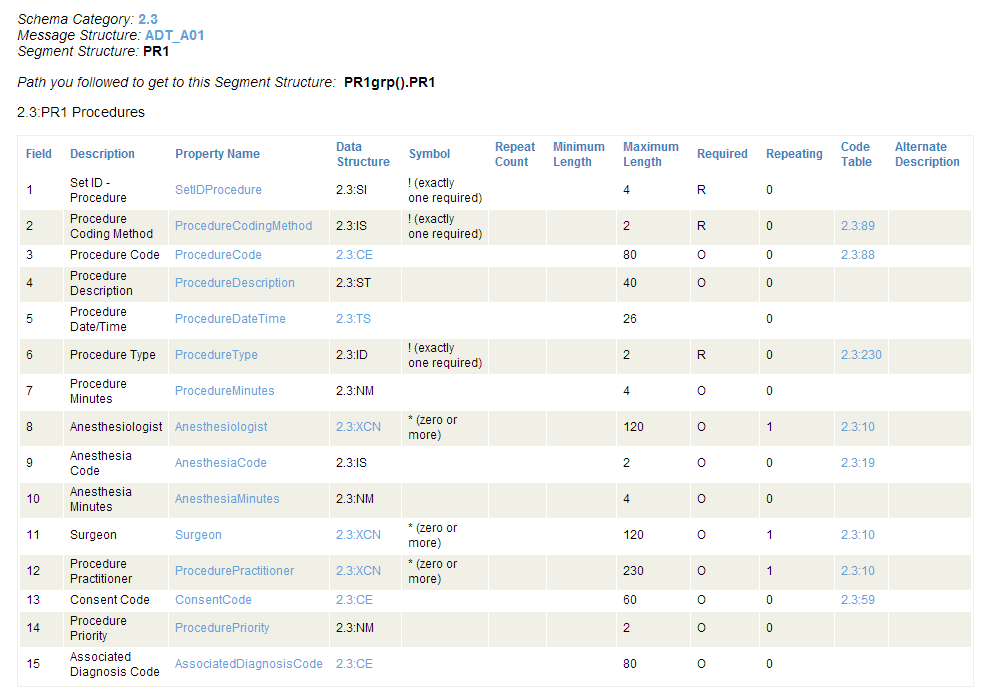
The columns are as follows:
-
Field — the number to use to access the field within the segment (if you prefer numbers).
-
Description — a short description of the field.
-
Property Name — the name to use to access the field within the segment (if you prefer names).
-
Data Structure — for more complex field values that use a data structure, you need further syntax details before you can complete the segment:field virtual property path. You can get this by clicking on the name in this column
-
Symbol — indicates the syntax rules for the field. The characters in this column indicate whether you can expect this field to be present, absent, or repeated within the message segment. Possible values are:
Symbol Meaning ! (1 only) The field is required; it must occur only once. ? (0 or 1) The field is optional, but if it occurs, it may occur only once. + (1 or more) The field may repeat one or more times. * (0 or more) The field may repeat zero or more times. & The field may be present, and may repeat, but only under certain conditions. n* (0 to n) The field repeats a maximum of n times. -
Repeat Count — the maximum number of times the field can repeat (if it repeats, and if there is a maximum).
-
Minimum Length — the minimum number of characters in the field. Each repeat of the field must contain this number of characters.
-
Maximum Length — the maximum number of characters in the field. Each repeat of the field may contain this number of characters.
-
Required — displays R for required, O for optional.
-
Repeating — displays 1 for true, 0 for false.
-
Code Table — click on an entry to view the valid codes that may be entered in this field.
-
Alternate Description — a second, longer description of the field.
You can use this information, particularly the Property Name column, to build virtual property paths in the format segment:field. The following are examples of virtual property paths involving simple field values from the PR1 segment in the 2.3:ADT_A01 message structure. The () shortcut syntax indicates all available instances of a repeating field, whereas (1) indicates the first instance:
PR1grp().PR1:ProcedureType
PR1grp().PR1:ProcedureCode()
PR1grp().PR1:ProcedureCode(1)
PR1grp().PR1:ProcedureCode(x)
PR1grp().PR1:ProcedurePriority
Viewing a Data Structure
When you click on a name in the Data Structure column, InterSystems displays all the fields in that data structure. This is the HL7 Data Structure page. The following columns of the display are most useful:
-
The Component column lists the numbers you can use to access fields within the segments (if you prefer numbers).
-
The Property Name column lists the names you can use to access fields within the segments (if you prefer names).
-
Click on an entry in the Data Structure column (if any) to drill down for detail.
-
Click on an entry in the Code Table column (if any) to view the valid codes that may be entered in this field.
The following sample page appears when you click the Data Structure item called 2.3:XCN in the segment structure page above. The page states that the category 2.3 data structure XCN describes an “Extended Composite ID number and name” and consists of fourteen fields. Of these, some are simple values, some are data structures, and some are codes.
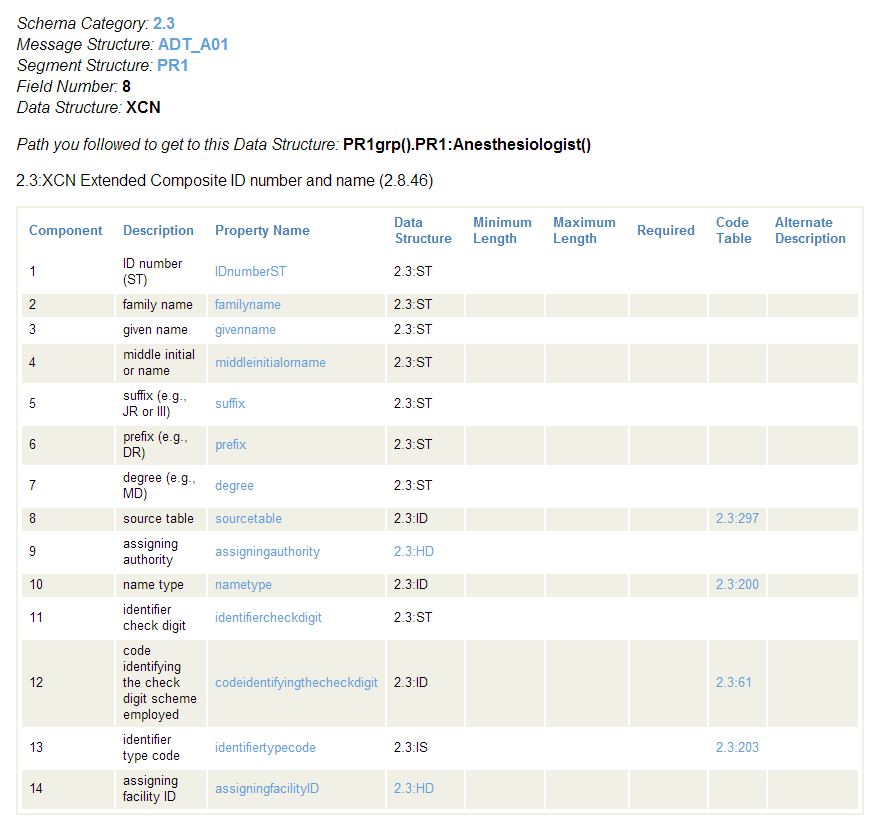
Given this information, you can create virtual property paths for the complex PR1grp().PR1:Surgeon field in the message structure 2.3:ADT_A01 as follows:
PR1grp().PR1:Surgeon.familyname
PR1grp().PR1:Surgeon.degree
Viewing a Code Table
When you click on a name in the Code Table column, it lists and explains the valid codes for that field. This is the HL7 Code Table page. The following sample page appears when you click the Code Table item called 2.3:200 in the data structure page shown in the previous section.
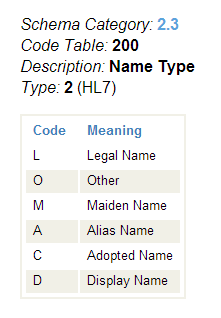
The example above shows that the category 2.3 code table 200 describes a “Name type” that can have the value L, O, M, A, C, or D.
This means that if you have an HL7 message with a DocType of 2.3:ADT_A01, it has an optional virtual property with the path PR1grp().PR1:Anesthesiologist.nametype that can contain one of the following values: L, O, M, A, C, or D.

